Instagram Transcripts

Instagram Transcript from a Public Reel or Video URL

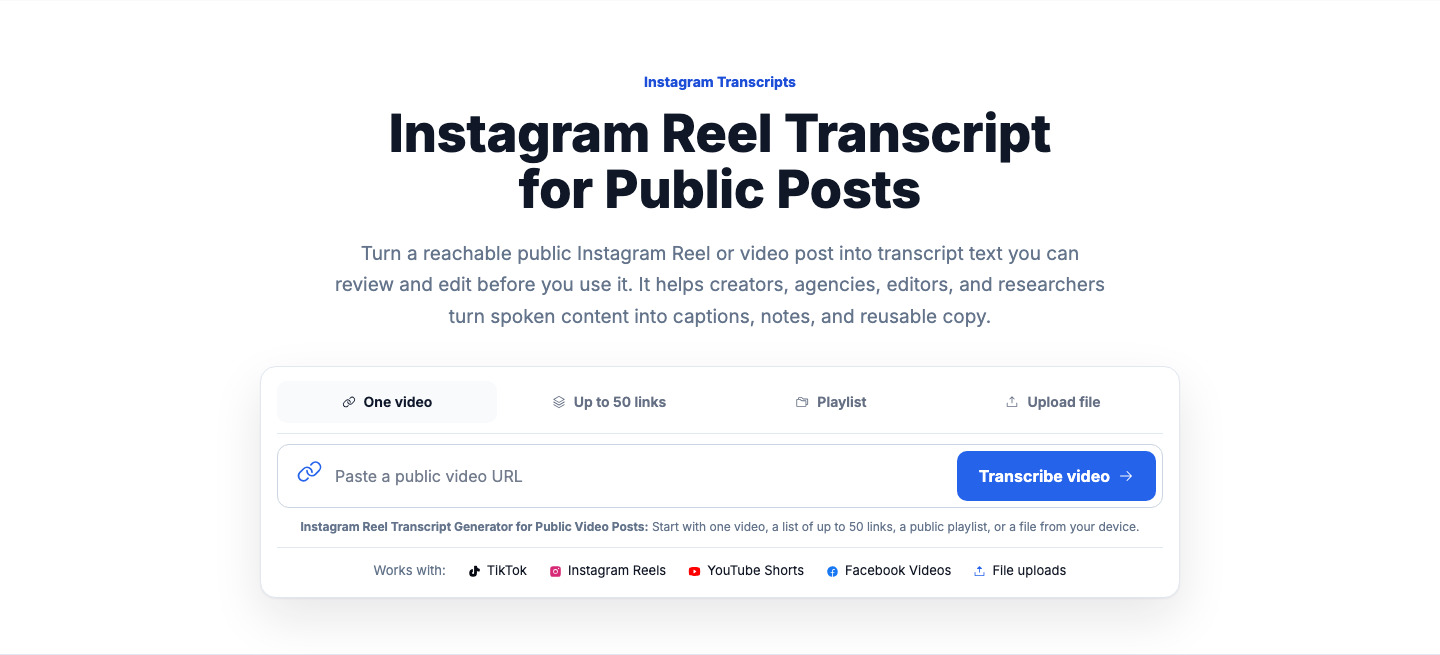
Turn a reachable public Instagram Reel or video post into transcript text you can review and edit before you use it. It helps creators, agencies, editors, and researchers turn spoken content into captions, notes, and reusable copy.

Instagram Transcript Generator for Public Reels and Video Posts: Start with one video, a list of up to 50 links, a public playlist, or a file from your device.

Works with: TikTok Instagram Reels YouTube Shorts File uploads

An Instagram transcript can be created from the spoken audio in a reachable public Instagram Reel or video post URL. Paste the URL, review and edit the transcript, then export it for captions, subtitle review, research, or content reuse. For batch work, you can submit up to 50 public URLs at once; a supported public collection or an uploaded audio or video file can also be used as the input.

VidiRelay Instagram transcript tool showing a public Reel URL, transcript preview, timestamps, and export menu
Turn spoken content from a public Instagram video into editable transcript text and subtitle-ready files.

Screenshot guide

01

Open Reel text

Bring the public Reel into transcript view for a quick read-through.

02

Clean spoken lines

Remove filler and split narration into clear sentence groups.

03

Choose output

Use TXT for captions or VTT for web playback needs.

Worked example

Pull a Reel transcript for caption planning

Scenario
A creator manager needs the spoken text from a public Instagram Reel to turn it into a caption and content brief.
Source input
Public Instagram Reel link to a 60-second behind-the-scenes clip with narration and a short spoken takeaway.
Result
A clean Reel transcript that can be turned into a caption, summary, or content outline.
Export choice
TXT for caption writing or VTT if web subtitle use is planned

Common use cases

These examples show how public Instagram video speech can support caption work, research, and content review.

Public Instagram Reel transcript

Input
Paste a public Instagram Reel URL to convert spoken content into text.
Output
A transcript with timestamps ready for review and export.
Why it helps
Helpful for repurposing Reel dialogue into captions, summaries, and scripts.

Public video post transcript for brand review

Input
Use a public Instagram video post link to extract spoken words into readable text.
Output
Searchable transcript text that can be copied or exported in multiple formats.
Why it helps
Supports content review and message analysis across social posts.

Creator Q&A clip transcript

Input
Add a public Instagram video URL featuring spoken answers or commentary.
Output
Timestamped transcript content for editing, quoting, and documentation.
Why it helps
Lets teams reference key moments without replaying the clip repeatedly.

Supported

  • Public Instagram video and Reel URLs that are accessible in a browser
  • Short-form spoken content such as commentary, Q&A, and creator updates
  • Transcript preview with timestamps before download
  • Exports for text review, subtitle work, and structured analysis

Not supported

  • Private, deleted, login-only, or unavailable Instagram posts
  • Silent clips or videos where speech is not the main content
  • Expectation of flawless results with heavy music or overlapping voices
  • Attempts to access content that is not publicly available
Source previewInstagram Transcript Generator for Public Reels and Video Posts
Instagram Transcripts
Timestamped transcript

Paste the Instagram Reel or video post URL you want to transcribe. The source needs to be public and reachable, not private, removed, or blocked behind login access.

Open the completed transcript and read through the wording while checking the timing. Edit names, brand terms, or unclear phrases before you use the text anywhere else.

Download the transcript in the format that fits your next step, including TXT, SRT, VTT, CSV, JSON, or DOCX-ready text. From there, you can build captions, review subtitles, or share research notes.

Convert public Instagram video speech into text

Paste a public Instagram Reel or video link, review the transcript, and export it in the format you need.

Create Instagram transcript

How to create a transcript from an Instagram Reel

The process starts with a public Instagram post that can be reached from its link.

  1. 1

    Add a public Reel or video post link

    Paste the Instagram Reel or video post URL you want to transcribe. The source needs to be public and reachable, not private, removed, or blocked behind login access.

  2. 2

    Review the transcript text and timestamps

    Open the completed transcript and read through the wording while checking the timing. Edit names, brand terms, or unclear phrases before you use the text anywhere else.

  3. 3

    Export for captions, notes, or team review

    Download the transcript in the format that fits your next step, including TXT, SRT, VTT, CSV, JSON, or DOCX-ready text. From there, you can build captions, review subtitles, or share research notes.

What matters on this page

Instagram video posts have a few practical limits and common use cases worth knowing before you start.

Use a public Reel or video URL
Start with one reachable public Instagram Reel or video post URL, or use the supported batch workflow for up to 50 public URLs. Review and edit the resulting transcript before exporting it for captions, subtitle review, research, or reuse. Uploaded audio or video files are another supported starting point.
Useful for captions, hooks, and campaign review
Many users start with an Instagram reels transcript to draft on-screen captions or test stronger opening lines. Others use transcript text to review creator messaging and compare campaign language across posts.
Works from one link, batches, collections, or files
You can begin with one public link, up to 50 links in a batch, a supported public collection, or an uploaded audio or video file. Credits are charged only after transcript text is produced successfully.

Why people use an Instagram reel transcript

A transcript is useful when you need the words from a Reel in a format you can work with.

Reuse spoken content in new formats

Pull the spoken lines from a Reel into text for captions, hooks, summaries, or rewritten posts. That gives you a starting point you can revise for different channels or campaign needs.

Review subtitles before publishing elsewhere

If you want subtitle text or caption files, start by checking the transcript and fixing names, products, or phrasing. Reviewing the text first helps you catch issues before you export it.

Research creators, campaigns, or recurring themes

Transcript text makes it easier to scan what was said across one post or a set of posts. Teams can use that text to compare messaging, offers, and repeated talking points.

What to expect

Some Instagram sources will not work, and it is better to know that before you rely on a link.

  • Private accounts, Stories, login-gated posts, removed videos, and some region-blocked sources are not reliable inputs.
  • If a public post is unavailable to the processing service, the transcript may fail even when the link looks valid.
  • If a link does not work, use another reachable public post or upload a saved audio or video file you have permission to use.

FAQ

Instagram Reel transcript FAQ

Can I edit and export an Instagram transcript?

Yes. Submit a reachable public Reel or video post URL, review the transcript, revise its wording or timestamps, and export the edited text for captions, subtitle review, research, or content reuse. For multiple sources, use a batch of up to 50 public URLs when appropriate.

What can I do with the transcript after it is generated?

You can use it for captions, subtitle review, hooks, summaries, rewrites, or campaign research. Export options include TXT, SRT, VTT, CSV, JSON, and DOCX-ready text.

Will private Instagram posts or Stories work?

Usually no. Private accounts, Stories, login-gated posts, removed videos, and some blocked sources are not dependable inputs for this page.

Can I process more than one Instagram post at a time?

Yes, you can start with one link or submit up to 50 links in a batch when you need multiple transcripts. That is useful for content review, creator research, or campaign comparisons.

Decision rules

Decision rulesChoose whenAvoid when
You are writing a caption from the ReelExport TXT with clean sentence breaksKeeping subtitle line breaks that interrupt reading
The Reel mixes voiceover and dialogueLabel only meaningful speaker changesAdding labels to every short phrase
You need subtitles on a site playerExport VTTUsing TXT when timed captions are required

Export formats

TXTBest forSimple reading, note capture, and quick reuseCheck before useNo subtitle cue formatting is retained
SRTBest forCaption editing and subtitle import into many toolsCheck before useShort clips with rapid speech may need cue cleanup
VTTBest forWeb captions and browser-based subtitle playbackCheck before usePlatform support for cue settings can differ
CSVBest forSpreadsheet review, timestamp filtering, and content comparisonCheck before useImport settings may affect how long text cells display
JSONBest forStructured transcript records and custom handlingCheck before useBest when you need machine-readable transcript fields
DOCXBest forEditorial review, comments, and document sharingCheck before useLess convenient than subtitle formats for timing edits

Why a job can fail

The Instagram post is private, removed, or requires sign-in

What to try: Use a public Reel or video post URL that opens normally in a browser

The link is not a direct post URL

What to try: Copy the exact URL for the individual Reel or video post

Speech is masked by music, effects, or low audio quality

What to try: Choose clearer spoken content and review the transcript for corrections

The post is temporarily unavailable or still loading on Instagram

What to try: Confirm the post plays publicly and try again after a short wait

The pasted URL includes extra characters or formatting issues

What to try: Paste a clean direct link from the address bar or share option