Video transcription

Video to Text for Editable Transcripts and Subtitles

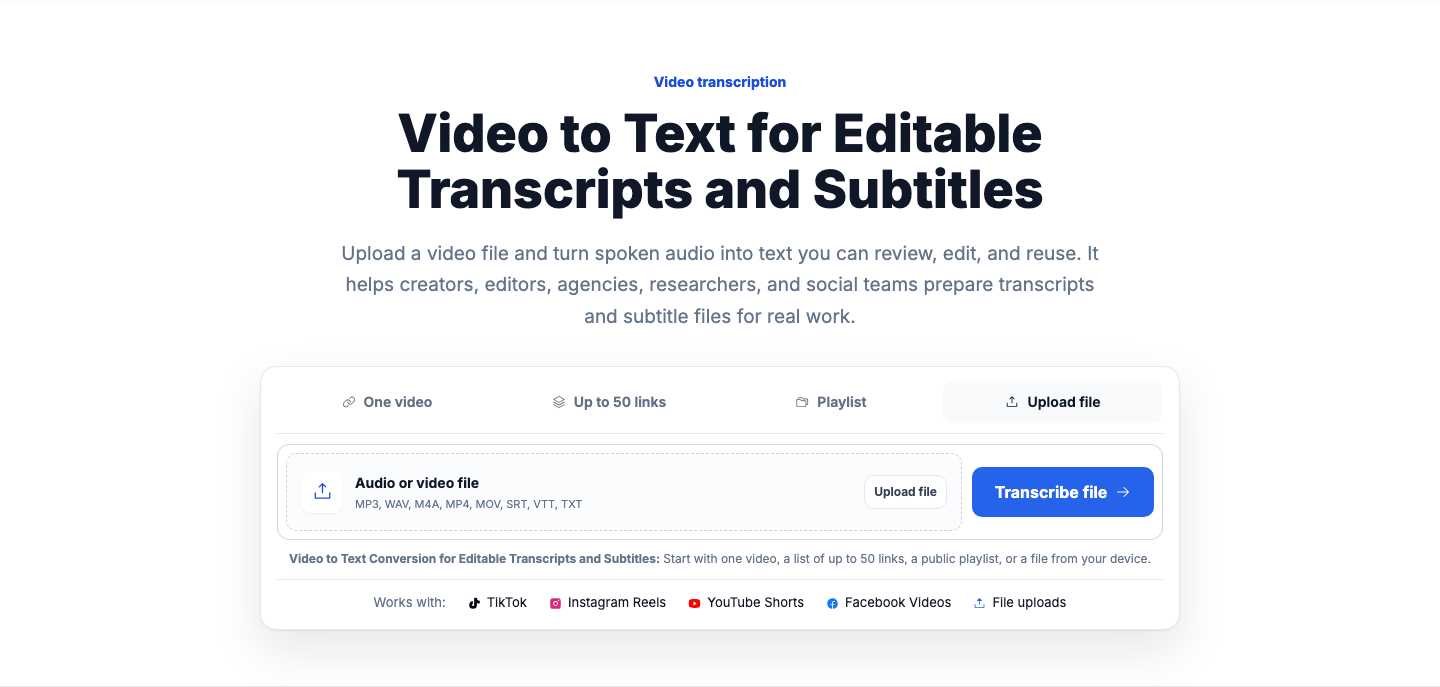
Upload a video file and turn spoken audio into text you can review, edit, and reuse. It helps creators, editors, agencies, researchers, and social teams prepare transcripts and subtitle files for real work.

Video to Text Conversion for Editable Transcripts and Subtitles: Start with one video, a list of up to 50 links, a public playlist, or a file from your device.

Works with: TikTok Instagram Reels YouTube Shorts File uploads

Video to text means converting the spoken track in a video file into written text. With VidiRelay, you upload your video, review and edit the transcript with timestamps, and export it as text or subtitle files such as SRT and VTT.

VidiRelay video to text interface with transcript preview, timestamps, and export options for multiple file types
Transform spoken video content into readable text and export-ready transcript files.

Screenshot guide

01

Upload video

Add the webinar file and wait for the transcript to populate.
02

Review sections

Check speaker turns, terminology, and major topic breaks.

03

Export for editing

Choose DOCX when the transcript will be edited by a team.

Worked example

Transcribe a webinar recording for reuse

Scenario
A team wants text from a recorded webinar to create a recap page, pull quotes, and find key sections.
Source input
Uploaded 28-minute webinar video with one host, one guest, and a short audience Q&A.
Result
A structured transcript with clear speaker turns and topic sections for recap writing and quote selection.
Export choice
DOCX for editing, or TXT for lightweight drafting

Common use cases

These examples show how uploaded video speech can become editable text for production, research, and accessibility work.

Meeting recording transcript

Input
Upload or use a supported video source with spoken discussion to convert speech into text.
Output
A readable transcript with timestamps for review, editing, and export.
Why it helps
Useful for meeting notes, summaries, and documentation from recorded video.

Webinar transcript for content reuse

Input
Process a webinar recording to capture spoken sections as text.
Output
Structured transcript text that can be searched, copied, and exported.
Why it helps
Helps turn long video sessions into articles, summaries, and support content.

Training video transcript

Input
Use a spoken training video to generate text for internal review or learning materials.
Output
Timestamped transcript content suitable for editing and subtitle preparation.
Why it helps
Makes instructional content easier to reference and adapt into written resources.

Supported

  • Spoken video content with clear audio and accessible source media
  • Timestamped transcript review before export
  • Use cases such as meetings, webinars, interviews, and training videos
  • Exports for plain text, subtitles, spreadsheets, structured data, and documents

Not supported

  • Private or inaccessible media that cannot be opened or processed normally
  • Silent footage or videos where speech is minimal
  • Expectation of perfect results in noisy, multi-speaker, or low-quality recordings
  • Requests to access removed, restricted, or login-only media
Media readyVideo to Text Conversion for Editable Transcripts and Subtitles
Audio clarity affects the resultLanguage and speech style matterSubtitles come from the reviewed transcript
Convert spoken video into editable text

Use video-to-text to capture speech, review the transcript with timestamps, and export it for notes, subtitles, or documentation.

Convert video to text

What matters on this page

A few practical details can affect how useful your video transcript will be.

Audio clarity affects the result
Clear speech, limited background noise, and distinct speakers usually produce a more usable draft. If the audio is muffled, overlapping, or inconsistent, plan to spend more time reviewing and editing.
Language and speech style matter
The usefulness of video to text can vary with language, accent, pacing, and specialized terms. Review is especially important for interviews, technical topics, and fast conversational clips.
Subtitles come from the reviewed transcript
If you need SRT or VTT files, it helps to check the transcript first so subtitle text matches what you want viewers to read. This is a practical step before publishing to video platforms or sending files to an editor.

Why use video to text

The main value is getting usable text from your video file in a format you can work with.

Start from a video file on your device

Choose a video file you already have instead of pasting a public link. This is useful for drafts, recorded interviews, webinars, meetings, and edited clips you want to turn into text.

Review the transcript before you publish

You can check the transcript with timestamps and make edits where names, phrasing, or formatting need attention. That gives you a cleaner base for articles, captions, notes, or subtitle delivery.

Export text and subtitle formats

When the transcript is ready, export it as TXT, SRT, VTT, CSV, JSON, or DOCX-ready text. That makes video transcript conversion practical for both reading and subtitle handoff.

How video to text works

The process starts with your saved video file and ends with editable text or subtitle files.

  1. 1

    Upload your video file

    Select a video from your device to begin video transcription. Once the file is accepted, VidiRelay prepares the spoken track for transcript creation.

  2. 2

    Review and edit the transcript

    Open the completed transcript, read through the text, and use timestamps to check key moments. You can correct wording, speaker details, or formatting before sharing or exporting.

  3. 3

    Export the format you need

    Download the finished transcript as plain text or choose SRT or VTT for subtitles. You can also export other supported formats if your team needs them for analysis or publishing.

What to know before you start

A few source and output limits are worth knowing so you can plan the job correctly.

  • Private, removed, or unavailable sources can fail, so this page is best for video files you can upload directly.
  • Transcript text should be reviewed and edited before publishing, especially when audio quality or language complexity is an issue.
  • If a video file is not the right starting point, you can also work from supported public links, collections, or uploaded audio files.

FAQ

Video to text FAQ

Can I upload a video file instead of using a public link?

Yes. This page is for uploading a video file from your device and converting the spoken track into editable text.

Can I get subtitle files from my video transcript?

Yes. After you review and edit the transcript, you can export subtitle formats including SRT and VTT.

What if my video has unclear audio or multiple speakers?

You can still create a transcript, but the draft may need closer review. Clearer audio and distinct speech usually lead to a more useful starting result.

What else can I do after converting video to text?

You can reuse the transcript for summaries, hooks, captions, rewrites, SEO briefs, or content analysis. That helps you get more value from the same recorded material.

Decision rules

Decision rulesChoose whenAvoid when
Multiple speakers are presentReview speaker changes before exportPublishing a transcript with merged voices
The transcript feeds a recap articleAdd simple section headingsLeaving one unbroken wall of text
A team will edit the fileExport DOCXUsing subtitle formats for document editing

Export formats

TXTBest forReading, note-taking, and simple text reuseCheck before useNo subtitle timing structure beyond plain transcript text
SRTBest forSubtitle creation for many editors and media playersCheck before useCue timing may need manual review for final delivery
VTTBest forWeb captions and browser-based video playbackCheck before useSome players interpret cue settings differently
CSVBest forTimestamp analysis, spreadsheet sorting, and review workflowsCheck before useLong transcript cells may need formatting adjustments
JSONBest forStructured transcript storage and custom integrationsCheck before useMost useful when field-based transcript data is needed
DOCXBest forEditorial review, comments, and document collaborationCheck before useNot the best format for subtitle timing edits

Why a job can fail

The video source is inaccessible or not publicly available where required

What to try: Use media that opens normally and is available for processing

The file or source has weak, distorted, or inconsistent audio

What to try: Choose a clearer recording or improve the source audio before retrying

Multiple speakers talk over each other frequently

What to try: Review the transcript carefully and correct speaker turns where needed

The video contains long non-speech sections

What to try: Use content with clearer spoken segments for better transcript usefulness

The selected source or link is incomplete or unsupported

What to try: Provide a valid video source and confirm it is the intended media