YouTube Transcripts

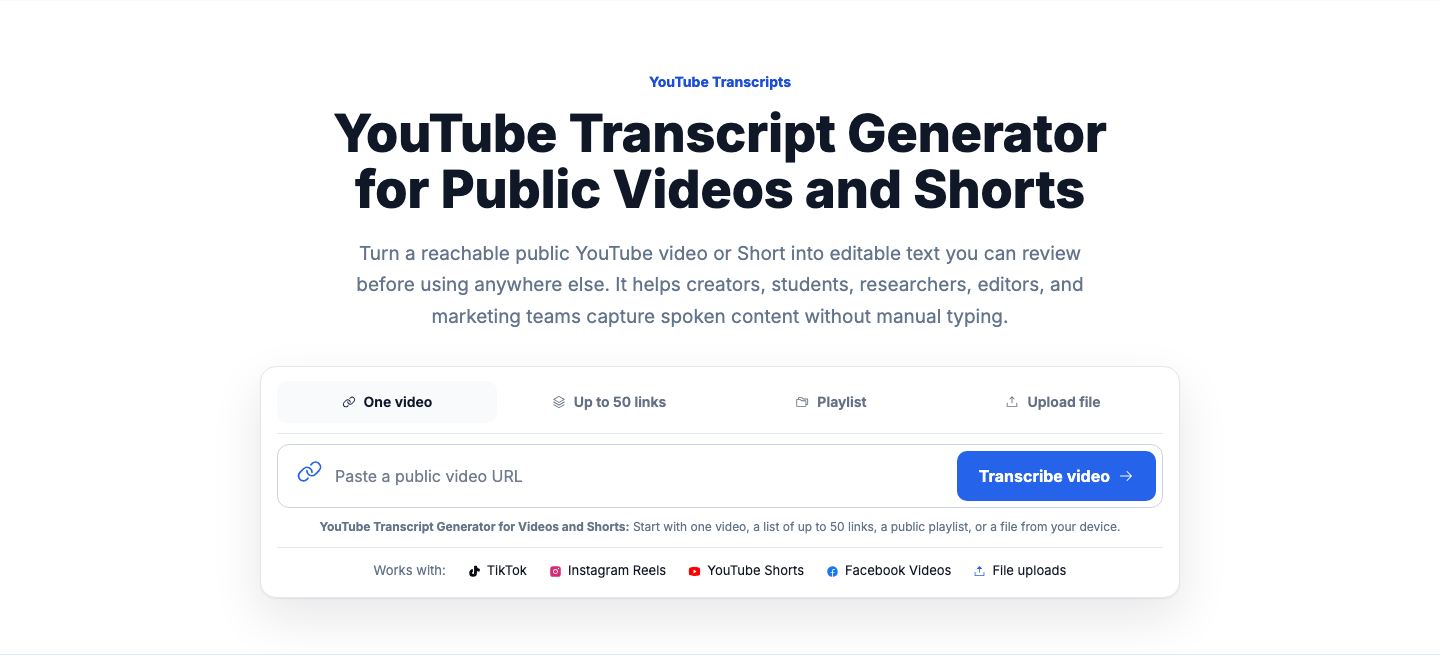
YouTube Transcript Generator for Public Videos and Shorts

Turn a reachable public YouTube video or Short into editable text you can review before using anywhere else. It helps creators, students, researchers, editors, and marketing teams capture spoken content without manual typing.

YouTube Transcript Generator for Videos and Shorts: Start with one video, a list of up to 50 links, a public playlist, or a file from your device.

Works with: TikTok Instagram Reels YouTube Shorts File uploads

A YouTube transcript generator creates text from a public YouTube video or Short so you can read, search, edit, and reuse the spoken content. VidiRelay checks for existing captions first, then prepares transcript text you can review with timestamps and export in several formats.

VidiRelay YouTube transcript tool showing a public video URL, generated transcript text, timestamps, and export options
Convert spoken content from a public YouTube video into readable text and export-ready transcript files.

Screenshot guide

01

Paste video link

Start with the public YouTube URL and load the transcript view.
02

Review transcript blocks

Scan for section breaks, repeated words, and obvious name fixes.

03

Export format

Choose TXT for writing or SRT when timing matters.

Worked example

Turn a tutorial video into usable notes

Scenario
A marketer needs a clean transcript from a public YouTube product walkthrough to pull quotes and build a recap.
Source input
Public YouTube link to a 9-minute tutorial covering setup steps, feature tips, and a short Q&A.
Result
A readable transcript with cleaned sections for setup, tips, and Q&A, ready for notes or repurposing.
Export choice
TXT for drafting, or SRT if timing needs to stay attached

Common use cases

These examples show how a public YouTube video can become reviewable text for study, publishing, or research.

Lecture recap from a public YouTube video

Input
Paste a public YouTube video URL to capture spoken content and turn it into readable text.
Output
A clean transcript with timestamps available for review, editing, and export.
Why it helps
Useful for study notes, article drafting, and quote extraction from long-form videos.

Podcast episode notes from YouTube

Input
Use a public YouTube podcast upload to pull the spoken dialogue into text.
Output
Structured transcript text that can be skimmed, searched, and exported in multiple formats.
Why it helps
Helps teams create summaries, show notes, and reusable content faster.

Interview transcript for research

Input
Add a public interview video link from YouTube and review the generated text.
Output
Timestamped transcript content suitable for analysis, citation checks, and editing.
Why it helps
Makes it easier to locate key statements without replaying the full video.

Supported

  • Public YouTube video URLs that are accessible in a browser
  • Long-form spoken content such as lectures, interviews, and podcasts
  • Timestamped transcript review before export
  • Exports for reading, editing, subtitles, and structured data use

Not supported

  • Private, removed, age-gated, or login-only YouTube videos
  • Media with no accessible audio track
  • Expectation of perfect wording in noisy or overlapping speech
  • Use cases that require bypassing platform access controls
Source previewYouTube Transcript Generator for Videos and Shorts
YouTube Transcripts
Timestamped transcript

Paste one reachable public YouTube link to start, or use a larger batch when you have multiple videos to process. The system checks whether the source can be reached and whether captions are already available.

If captions exist, they are checked before upload-style transcription is considered. Once transcript text is produced, you can review it with timestamps and edit wording, speaker references, or formatting.

Download the transcript in the format that matches your next task, or use it for summaries, captions, hooks, rewrites, SEO briefs, or content analysis. This helps you move from spoken video to working text without copying lines by hand.

Turn public YouTube speech into usable text

Paste a public YouTube link, review the transcript, and export it in the format that fits your editing or subtitle workflow.

Create YouTube transcript

What to know for YouTube videos

A few page-specific details can help you decide whether this is the right fit for your source.

Public access is required
The video or Short needs to be publicly reachable at the time you submit it. Private, login-gated, removed, region-blocked, or otherwise unavailable sources may fail.
Caption checks happen first
When a public YouTube source already has captions, those are checked before other transcription methods are considered. This can help preserve the structure already attached to the video.
Credits can vary by video length
Short clips and long videos do not always cost the same to process. Longer YouTube videos can take more credits than shorter ones, so it is best not to assume a fixed amount for every link.

How the YouTube transcript process works

The steps are built around turning a public YouTube link into usable text.

  1. 1

    Add a public YouTube video or Short

    Paste one reachable public YouTube link to start, or use a larger batch when you have multiple videos to process. The system checks whether the source can be reached and whether captions are already available.

  2. 2

    Generate and review the transcript

    If captions exist, they are checked before upload-style transcription is considered. Once transcript text is produced, you can review it with timestamps and edit wording, speaker references, or formatting.

  3. 3

    Export or reuse the text

    Download the transcript in the format that matches your next task, or use it for summaries, captions, hooks, rewrites, SEO briefs, or content analysis. This helps you move from spoken video to working text without copying lines by hand.

Limits to keep in mind

Not every YouTube link will work, and some transcript jobs need a manual review before you use the text elsewhere.

  • It only works with reachable public YouTube videos and Shorts, not private or login-only content.
  • Transcript text may need edits for names, jargon, speaker changes, or unclear audio.
  • If a YouTube link is unavailable, you can try another public source link or upload a supported audio or video file instead.

Why use it for YouTube transcripts

These details matter when you need text you can actually work with after the video is processed.

Works for standard videos and YouTube Shorts

Use the same workflow for a full YouTube upload or a Short shared with a public link. That makes it useful for long interviews, lessons, product videos, and short-form clips.

Review the transcript before publishing

You can read through the transcript with timestamps and make edits where needed. That gives you a chance to clean up names, phrasing, or formatting before you export or repurpose the text.

Choose exports that fit your next step

Download transcript text as TXT, SRT, VTT, CSV, JSON, or DOCX-ready text. Whether you need subtitles, notes, research material, or source text for new content, you can start from the same transcript.

FAQ

YouTube transcript generator FAQ

Can I use this for a YouTube Short as well as a regular video?

Yes. The page supports both standard public YouTube videos and public YouTube Shorts through the same basic workflow.

What happens if the YouTube video already has captions?

Existing captions are checked before upload-style transcription is considered. After transcript text is produced, you can still review and edit it before exporting.

Can it create a transcript from a private or members-only YouTube video?

No. The source must be publicly reachable, and private, login-gated, removed, or region-blocked videos may not process.

What can I do with the transcript after it is ready?

You can export it in several text and subtitle formats or use it for summaries, captions, rewrites, SEO briefs, and content analysis. That makes it useful for publishing, research, editing, and planning follow-up content.

Decision rules

Decision rulesChoose whenAvoid when
You need quotes for an articleKeep timestamps during reviewRemoving all timing before fact checks
The video has one clear speakerUse simple paragraph cleanupOver-labeling every line as a new speaker
You want a blog draft laterExport TXT after cleanupStarting from subtitle format if timing is not needed

Export formats

TXTBest forPlain reading, quick notes, and simple copy-paste workflowsCheck before useNo subtitle timing structure is preserved beyond plain text output
SRTBest forStandard subtitle files for many video editors and playersCheck before useLine length and timing may need manual refinement for final captions
VTTBest forWeb video captions and browser-friendly subtitle useCheck before useSome platforms handle styling and cue settings differently
CSVBest forSpreadsheet review, timestamp sorting, and content analysisCheck before useLong text fields may need cleanup depending on spreadsheet settings
JSONBest forStructured transcript storage and custom processingCheck before useBest suited to technical workflows that expect structured fields
DOCXBest forEditorial review, comments, and document sharingCheck before useSubtitle timing is less convenient to manage in document format

Why a job can fail

The YouTube link is private, removed, or requires sign-in

What to try: Use a public video URL that opens normally in a standard browser session

The pasted URL is incomplete or malformed

What to try: Paste the full video link directly from the browser address bar or share menu

The video has little speech or unclear audio

What to try: Choose media with clearer spoken audio and less background noise

The source language or accents reduce transcript quality

What to try: Review the text after generation and correct names, jargon, and unclear phrases

The video is still processing or temporarily unavailable on YouTube

What to try: Wait a few minutes, confirm the video plays publicly, and try again