How to Transcribe a YouTube Short and Turn It Into Usable Text
Learn how to transcribe a YouTube Short, check the text for errors, and export it for captions, notes, research, or content reuse with a practical VidiRelay workflow.
Key takeaways
- Start with a public and reachable YouTube Short URL, then check whether captions or a transcript are available.
- Use the transcript as a draft, not a final record, and review names, numbers, on-screen text, timestamps, and subtitle readability.
- Export the format that matches the next task: TXT or DOCX for editing, SRT or VTT for captions, CSV or JSON for analysis and structured reuse.
Generate a transcript from a public YouTube Short
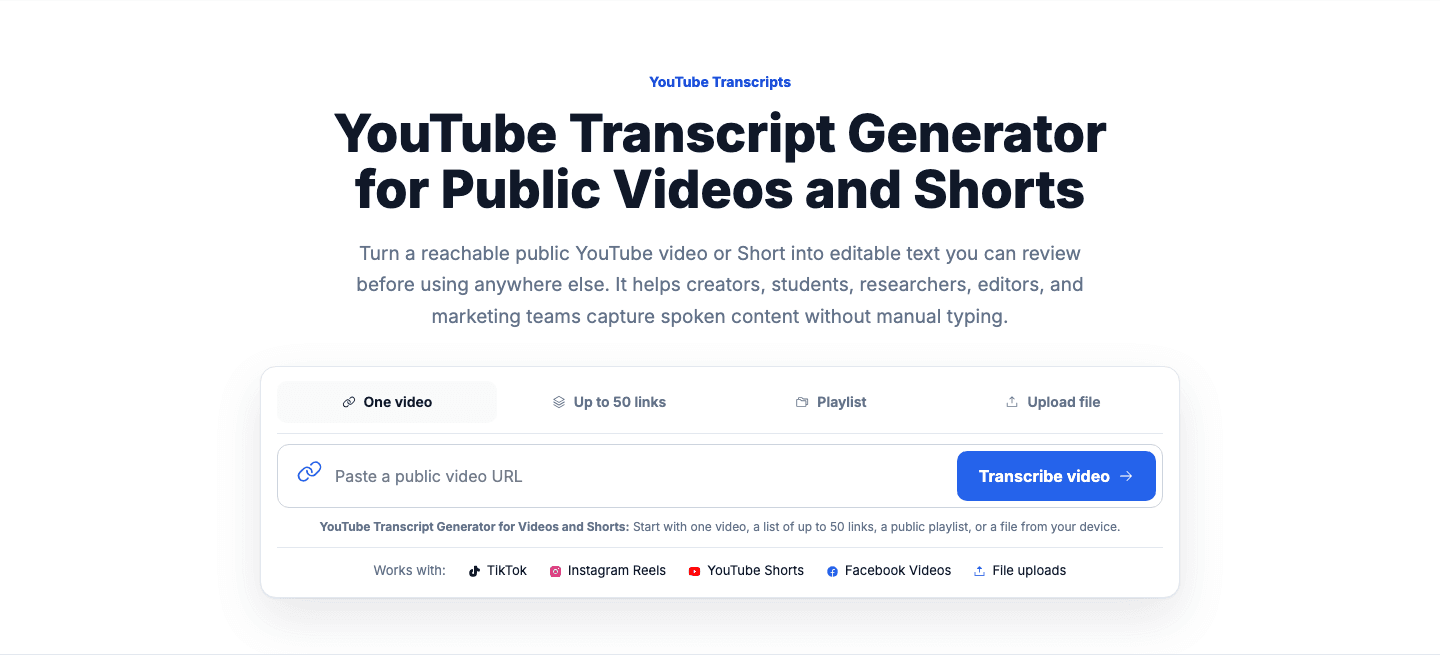
Paste a public YouTube Short link, review the returned text carefully, and export the format that fits captions, notes, research, or reuse.
Field example
Field example: turning a Short into reusable notes and captions
- Scenario
- A marketer wants to transcribe a public YouTube Short that announces a limited-time product drop, then reuse the text for internal notes and on-platform captions.
- Transcript input
- "Drop goes live Friday at 5 PM. We made 200 units. Link in bio. Colorway is Midnight Sand."
- Working draft
- Friday launch at 5 PM. Product quantity: 200 units. Product name/colorway: Midnight Sand. Add visible on-screen text if it shows the exact date, URL wording, or promo code. Check whether 'bio' should stay as spoken or be rewritten for off-platform notes.
- Final use
- Export TXT for meeting notes, then export SRT for captions after shortening long lines and confirming the timing of 'Friday at 5 PM' and '200 units'.
How to transcribe a YouTube Short: the direct answer
To transcribe a YouTube Short, start with the public video URL and check whether captions or a transcript are available. If the Short is public and reachable, you can use YouTube's built-in transcript route when captions exist, or use a dedicated transcript workflow to pull the text into a format that is easier to review, edit, and reuse. Your next action is simple: open the Short, copy the link, and decide whether you need a quick read-only transcript or an exportable file for captions, notes, research, or repurposing.
A practical workflow matters because Shorts move fast and often pack names, numbers, product terms, and on-screen text into less than a minute. Automatic captions can help, but they still need review. Also, not every YouTube Short has a transcript, and access depends on the source being public and reachable. Private, removed, login-only, region-restricted, or otherwise protected media cannot be accessed through a normal public transcript workflow.
- Use a public and reachable YouTube Short URL, not a private or removed video link.
- Expect to review automatic captions for names, numbers, acronyms, and fast speech.
- Choose your output based on the next step: reading, editing, subtitles, analysis, or archiving.
What a YouTube Short transcript actually includes
A YouTube Short transcript is the spoken content of the video converted into text, often with timestamps. In many cases, it reflects caption data rather than a perfect word-for-word record of everything visible on screen. That means the transcript may capture dialogue or narration well enough for reference, while still missing context such as visual jokes, text overlays, sound effects, or quick speaker changes that matter when you reuse the content.
For Shorts specifically, the transcript is most useful when you treat it as a working draft. If a creator says, "Meet me at 5:30 on 8th Street," you should verify the time, street name, and any branded terms before using the text in captions or notes. If the Short includes on-screen labels, prices, dates, or hashtags, add those during review so the final text matches what viewers actually saw and heard.
- Transcript text usually captures speech first, not every visual detail in the Short.
- Timestamps help you jump back to the exact moment where a phrase needs checking.
- On-screen text, emojis, and visual context often need to be added manually during review.
The built-in YouTube route when captions exist
If captions are available on a YouTube Short, YouTube may provide a transcript view for that video. This is the fastest built-in route when you only need to read or copy the text. It works best for quick reference, fact checking, or pulling a quote from a public Short without setting up a larger editing workflow. When the transcript is present, you can use it to jump to a point in the video from a transcript line, which is helpful for checking a phrase in context.
The limitation is that this route depends on captions existing in the first place, and the transcript view is not designed for every downstream task. If you need cleaner editing, structured exports, subtitle files, or a format you can hand off to a teammate, a dedicated workflow is usually easier. It also helps when you want to compare timestamps, normalize line breaks, or prepare the text for research notes and content reuse.
- Use YouTube's transcript view for quick reading when captions are available.
- Check whether the transcript lines match the spoken wording and timing you need.
- Move to a dedicated workflow if you need exports, editing control, or subtitle formatting.
When a dedicated workflow helps with YouTube Shorts
A dedicated transcript workflow helps when the Short is part of a real task, not just a quick read. For example, you may want to turn a creator's 45-second Short into clean captions, a meeting note, a research excerpt, a quote bank, or a script draft for a blog post or newsletter. In those cases, you need more than visible transcript lines. You need a place to review wording, preserve timestamps, and export the right file type without rebuilding the text by hand.
This is also where limitations should stay clear. A public workflow can only work with public and reachable sources. It does not unlock private, removed, login-only, region-restricted, or protected media. And even when a transcript is available, automatic caption quality can vary with pronunciation, accents, dialects, overlapping speech, music, and background noise. For Shorts, where speech is often compressed and fast, review is part of the job, not an optional extra.
- Use a dedicated workflow when the transcript needs editing, exporting, or team handoff.
- Do not assume every YouTube Short has captions or a usable transcript.
- Treat automatic transcript text as a draft that needs human review before reuse.
Exact VidiRelay steps for a YouTube Short transcript
In VidiRelay, the workflow starts with the public YouTube Short link. Open the YouTube transcript generator, paste the URL, and generate the transcript for the public video. Once the text appears, read it with the video in mind rather than trusting the first pass. Check names, numbers, dates, prices, URLs, product terms, and any phrase that sounds unusual. If the Short includes visible text on screen, compare that text with the transcript and add missing context where needed.
Then decide what you need the transcript to do next. If you are creating readable notes, a plain text export may be enough. If you are preparing subtitles, keep timestamps and review line breaks. If you are analyzing multiple Shorts, a structured export can save time later. The key is to review before export, not after distribution. A small correction at this stage prevents bad captions, weak notes, and misleading quotes downstream.
- Paste the public YouTube Short URL into the tool and generate the transcript.
- Review names, numbers, on-screen text, timestamps, and speaker changes before export.
- Export the format that matches the next task instead of forcing one file type into every use case.
Captions, language limits, and audio-quality issues to expect
YouTube Shorts often rely on automatic captions, and those captions can vary in quality. Fast delivery, clipped words, slang, music beds, echo, and creator-specific pronunciation can all affect the transcript. Language support and caption availability also vary by video. A Short may have no captions, only automatic captions, or captions that are incomplete. That is why it is safer to say a transcript may be available when captions exist, not that every Short will always produce one.
Audio quality matters just as much as language. If the creator records outdoors, speaks over trending audio, or cuts between scenes quickly, the transcript may miss words or merge phrases incorrectly. Review the text against the video for proper nouns, measurements, serial numbers, and any line where a single wrong word changes the meaning. For subtitle use, also check subtitle line length and timing so captions stay readable on a vertical mobile screen.
- Automatic captions can be less reliable with accents, dialects, noise, music, or fast edits.
- A YouTube Short may have limited caption availability depending on the source video.
- For subtitle use, shorten long lines and verify timing for mobile-friendly reading.
How to review the transcript and choose the right export
Reviewing a YouTube Short transcript is easier when you use a checklist. First, verify factual details: names, places, numbers, dates, prices, and brand terms. Next, compare spoken words with on-screen text, since Shorts often communicate key context visually. Then check timestamps and speaker changes so the transcript remains useful for reference or subtitle timing. If the Short includes multiple voices, label them only when it improves clarity and you can do so confidently from the audio.
Choose the export format based on the job. TXT is best for quick notes and simple copy-paste. DOCX works when you want tracked edits, comments, or a shareable draft. SRT is the common choice for subtitle workflows with numbered caption blocks and timestamps. VTT is useful for web video workflows and supports web-friendly caption handling. CSV helps when you want rows for analysis, sorting, or spreadsheet review. JSON is best when the transcript needs to move into another structured system or app. No format is universally best; the right one depends on what happens after the transcript leaves the tool.
- Choose TXT for plain notes, DOCX for editing, SRT or VTT for captions, CSV for analysis, and JSON for structured workflows.
- Check subtitle line length, punctuation, and timing before using SRT or VTT.
- Keep timestamps when the transcript will be cited, reviewed, or turned into captions later.
FAQ: common questions about transcribing YouTube Shorts
Can every YouTube Short be transcribed? No. A transcript depends on the video being public and reachable, and in many cases on captions being available. Private, removed, login-only, region-restricted, or protected media are outside a normal public transcript workflow. Even for public Shorts, transcript availability and quality can vary.
What should you do after generating the transcript? Review it before you publish, quote, or repurpose it. Check names, numbers, on-screen text, timestamps, and any line affected by fast speech or background audio. If your goal is captions, export SRT or VTT and verify line breaks. If your goal is notes or research, TXT, DOCX, CSV, or JSON may be more useful depending on how you plan to store and search the text.
Editor notes
- Lead with the action: copy the public Short URL, generate the transcript, then review before reuse.
- Keep limitations plain and early so readers do not assume access to private, removed, or protected media.
- When discussing exports, tie each format to a real next step instead of listing file types without context.
Common pitfalls
- Treating automatic captions as final text without checking names, numbers, or on-screen details.
- Choosing SRT or VTT without reviewing subtitle line length and timing for a vertical mobile viewing experience.
- Using one export for every task when a simple TXT, editable DOCX, or structured CSV or JSON would fit better.
Use this checklist before you export
A short review pass improves accuracy and makes the transcript more useful in the next tool or handoff.
Sources and references
- YouTube Help: View video transcripts
Explains that a video transcript is available when captions exist and that viewers can jump to a point from a transcript line.
- YouTube Help: Use automatic captioning
Explains why automatic captions can vary with pronunciation, accents, dialects, and background noise, including on Shorts.